Creating short-form videos is easy. Keeping people watching them is the real challenge.
Whether you're making Instagram Reels, TikTok videos, or YouTube Shorts, showing the same talking-head footage throughout a video can make even interesting content feel repetitive. That's where B-roll comes in.
B-roll refers to supporting footage that adds context, illustrates an idea, or makes a video more visually engaging. For example, if you're explaining how to start a coffee business, you might include close-up shots of coffee beans, an espresso machine, or a busy café.
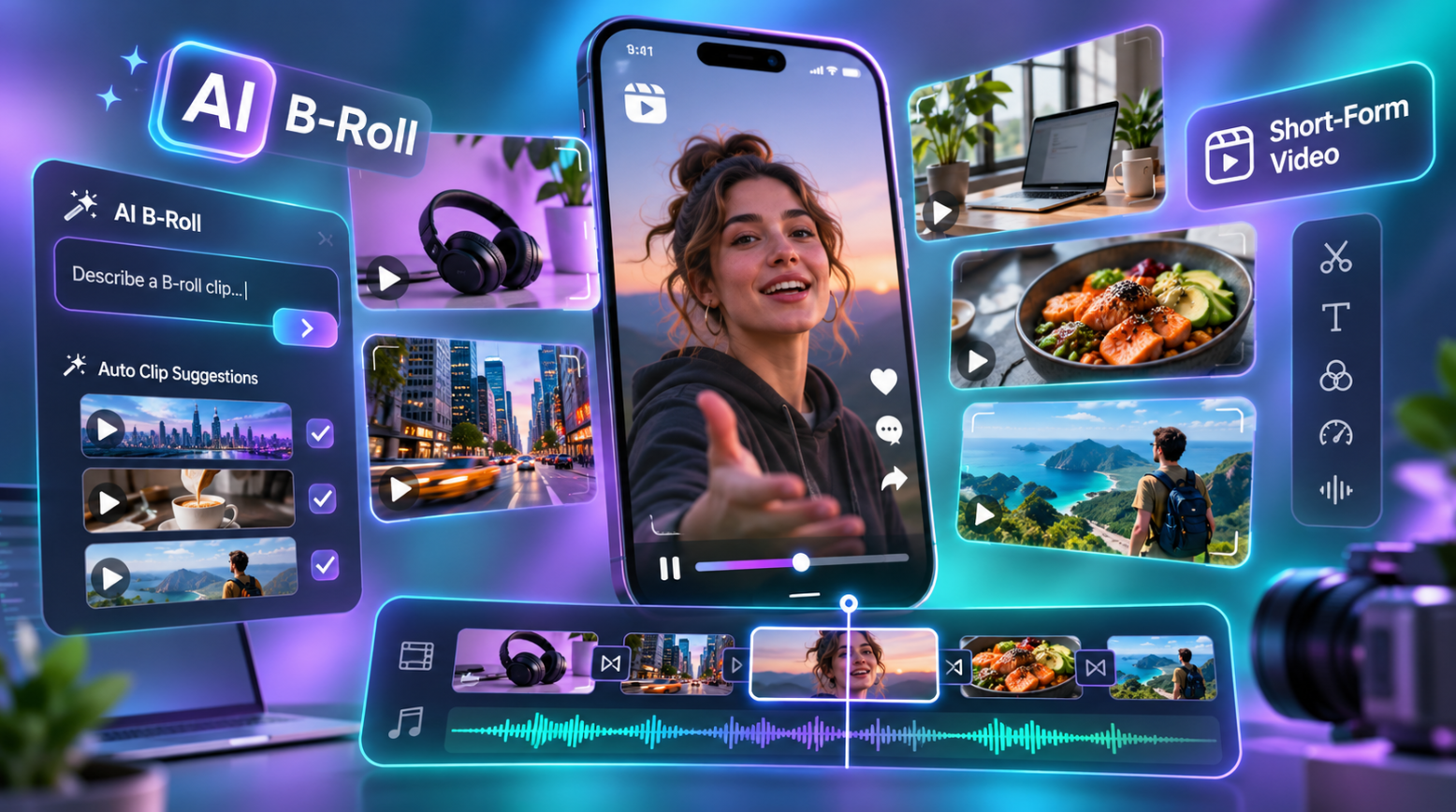
Traditionally, getting these shots meant filming extra footage or searching through stock video libraries. Now, AI B-roll tools can help you generate original clips, find relevant stock footage, and even place visuals into your video automatically.
But not every AI B-roll tool works the same way. Some focus on generating realistic footage from text prompts, while others are designed to add relevant visuals to videos you've already recorded.
In this guide, we'll explore the top AI tools to generate B-roll for short-form content, their key features, pricing, and what makes each one useful.
What Is AI B-Roll?
AI B-roll is supporting video footage that is generated, selected, or added to a video using artificial intelligence.
Instead of manually searching for every shot, you can use AI to create visuals that match your script, voiceover, or existing footage.
For example, imagine you're creating a 30-second Instagram Reel about productivity. When you mention planning your day, AI can help you add footage of someone writing in a notebook. When you discuss avoiding distractions, it might suggest a phone being placed face down on a desk.
These visuals support what you're saying while giving viewers something different to look at.
AI B-roll is particularly useful for talking-head videos, educational Shorts, product demonstrations, faceless content, and social media advertisements.
How Does AI B-Roll Generation Work?
AI B-roll tools generally use two approaches: generating new footage with AI models or selecting existing footage based on the context of your video.
Here's how the process typically works:
Upload footage or enter a prompt: You can provide an existing video, a script, or a description of the visuals you need.
AI analyzes the content: Depending on the tool, AI identifies important topics, spoken words, objects, or visual instructions.
Visuals are generated or selected: The tool creates new video clips using generative AI or searches a stock library for relevant footage.
B-roll is added to the edit: Some tools automatically place clips at suitable moments, while others let you download and position them manually.
Review and refine: You can replace clips, adjust timing, modify prompts, and make the footage match your video's overall style.
For example, you could enter a prompt like:
"Create a close-up cinematic shot of coffee being poured into a ceramic cup, with soft morning light and gentle camera movement."
A generative AI model interprets the description and creates a short video clip.
For tools that support automatic B-roll placement, AI can also analyze your narration and identify where that coffee shot would fit naturally.
The result is a faster workflow that combines visual storytelling with AI-assisted editing.
Why Use AI B-Roll for Short-Form Videos?
Short-form videos have limited time to communicate an idea. Every visual should serve a purpose.
AI B-roll can help improve your editing workflow in several ways.
Saves editing time: You spend less time browsing stock libraries or filming additional shots.
Adds visual variety: Supporting footage breaks up long sections of talking-head content.
Explains complex ideas: Visual examples make certain topics easier for viewers to understand.
Supports faster production: You can create multiple videos without filming every supporting shot yourself.
Offers creative flexibility: AI makes it possible to visualize scenes that may be difficult or expensive to film.
However, more B-roll doesn't automatically mean a better video. The most effective supporting footage complements the narration instead of distracting from it.
The best AI tools to generate B-roll for short-form content
1. Invideo Editor: Agent-placed B-roll inside a full timeline
Invideo Editor treats B-roll as part of the edit rather than a separate download. Upload your footage, and the built-in agent can read the script or dialogue, flag the lines that deserve a visual, and then either pull matching footage from the stock library or generate a custom shot. Placement and timing happen on the timeline, so each cutaway lands against the sentence it supports. That workflow makes the editor a practical ai b roll generator for short-form creators who want the footage and the edit in one place.
You do not need a finished script to start. Brief the agent on what the video is about and what shots you have in mind, and it can work from that direction. For a specific subject, product or location, add an image or video reference to guide the result. If a clip is close but not right, ask for another version with a different subject, framing, movement or style, or fix it yourself: trim it, move it, layer it over other footage or retime it on the multitrack timeline. That second path matters in shorts, where a cutaway often needs a small nudge to land on a beat.
The agent can also source music and sound effects, generate a voiceover, and help with captions and resizing for vertical delivery, so the B-roll pass sits inside the rest of the short rather than beside it. If you prefer to direct the edit from Claude or ChatGPT, invideo MCP connects them to the same project, and our guides to adding B-roll with ChatGPT and with Claude walk through that route. Generated media still uses invideo credits on that route. Invideo Editor suits creators who want AI to find, generate and place B-roll, then keep full manual control over the result.
Key features
An agent that analyzes your script or dialogue, identifies moments that need visuals, and sources or generates B-roll timed to them
Custom B-roll from 200+ AI models, plus a stock library for footage, music and sound effects
Multitrack, frame-accurate timeline for trimming, layering and retiming every clip
Plain-language revisions, optional image or video references, and the option to create several shots in one instruction
Shared workspace with timestamped review comments for teams
Pricing
The full timeline is included on every plan, while agent work, generated B-roll and premium stock use credits. The Starter plan is $20 per seat per month with 400 credits and access to the Lite agent. The Plus plan is $60 with 2,000 credits and the Lite, Pro and Ultra agents, and the Max plan is $150 with 5,000 credits. Annual billing currently takes 50% off these prices.
2. OpusClip: B-roll inside a long-to-short clipping workflow
OpusClip is built for turning long recordings such as podcasts, webinars and streams into short clips, and its B-roll tools sit inside that flow. After the AI picks moments and applies captions and reframing, you can open a clip in the editor and use OpusClip’s AI B-roll to add supporting visuals in one step. The feature draws on stock footage, AI images and AI video clips, with the video option powered by Agent Opus.
That makes OpusClip a good match when the real task is repurposing. You start from a finished long video, get a set of ready clips with a virality score and animated captions, and add B-roll to the ones that need more visual variety. The editor supports text-based and timeline editing, and the Pro plan adds export to Adobe Premiere Pro and DaVinci Resolve if you want to finish a clip elsewhere. The Pro plan also adds multiple aspect ratios and a social scheduler for posting across platforms.
B-roll access is tied to the plan. The Starter plan includes a small monthly quota of AI image and stock B-roll clips, while AI video B-roll belongs to the Pro plan. OpusClip suits creators and teams whose shorts start as long-form recordings and who want clipping, captions and B-roll in one pipeline.
Key features
AI B-roll from stock footage, AI images and AI video clips, depending on plan
AI clipping from long videos with virality scoring and animated captions
Text-based and timeline editing, plus filler and silence removal
Multiple aspect ratios, export to Premiere Pro and DaVinci Resolve, and a social scheduler on the Pro plan
Pricing
The free plan includes 60 credits a month with watermarked clips and no editing. The Starter plan is $15 per month with 150 credits and three AI image B-roll clips and three stock B-roll clips a month. The Pro plan is $29 per month, or $174 billed annually, and includes AI video B-roll.
3. Submagic: One-click Magic B-rolls for caption-led shorts
Submagic is a short-form editor known for animated captions, and B-roll is one of its fastest steps. Upload a video, wait for the captions to generate, open the B-rolls page and click Magic B-rolls. The tool reads your transcript and inserts relevant cutaways at the matching lines, so a mention of a city or a product gets footage that fits. It is a quick route from raw talking-head clip to a captioned short with visual variety.
You keep control after the automatic pass. You can add B-roll manually at any subtitle line, choose the exact moment it appears and set how long it stays on screen. For shots the library does not cover, Submagic’s AI B-rolls and AI images let you describe a visual in a prompt and generate it inside the editor. The Submagic B-roll feature sits alongside auto zooms, hook titles, silence removal and clean audio, so one pass can handle most of a short.
Plan limits shape how you use it. The Starter plan covers up to 15 videos a month at a maximum of two minutes each and uses the free B-roll library. The Pro plan raises that to 40 videos of up to five minutes, adds Storyblocks B-roll and movie clips, and includes the auto-zoom and bad-take removal tools. Submagic suits solo creators and small teams who post caption-heavy talking-head shorts on a daily schedule.
Key features
Magic B-rolls that insert relevant cutaways from your transcript in one click
Manual B-roll placement with control over timing and on-screen duration
AI-generated B-rolls and images from text prompts
Animated captions, auto zooms, hook titles, silence removal and clean audio in the same editor
Pricing
The Starter plan is $19 per member per month, or $12 billed yearly, with 15 videos a month and free B-roll. The Pro plan is $39, or $23 billed yearly, with 40 videos a month and Storyblocks B-roll. The Business plan is $69, or $41 billed yearly.
4. Kapwing: Smart B-roll in a collaborative browser editor
Kapwing runs entirely in the browser, and its AI B-roll generator lives inside the full editor. Upload a video with spoken audio, open the Images tab and choose Smart B-roll. The AI reads your transcript to understand each section, then finds and inserts matching B-roll on the timeline within seconds. Speech is required, because the tool needs your words to decide what each moment is about.
Smart B-roll pulls from a stock library powered by iStock, Pexels and Pixabay. When you need something more specific, you can generate custom video clips, images or animated scenes from a prompt using models such as MiniMax, Veo and Seedance. Everything arrives as timeline layers, so you can trim, swap, reposition, resize, apply filters or delete a clip. Subtitles, voiceovers, AI avatars and brand assets all live in the same project.
Collaboration is a real strength here. Teammates can edit together in real time, leave comments and share a project by link, and you can export in any aspect ratio or publish to YouTube, TikTok and Instagram. Kapwing suits teams and agencies that review shorts together and want B-roll, captions and resizing in a single shared workspace.
Key features
Smart B-roll that matches stock footage to your transcript and places it on the timeline
Custom generation of video clips, images and animated scenes from prompts
Fully editable B-roll layers with trim, swap, reposition and resize controls
Real-time collaboration, comments, brand kit and export in any aspect ratio
Pricing
The free plan includes 10 credits, a watermark, 720p export and a four-minute limit. The Pro plan is $16 per month billed annually, with 1,000 credits, no watermark and 4K export, and the Business plan is $50 per month with 4,000 credits. AI features draw on the credit allowance.
5. Runway: Custom cinematic shots from text and images
Runway is a generator first. You describe a shot, or start from an image, and the platform produces a short video clip that you download and bring into your editor. Its current flagship model, Gen-4.5, handles text-to-video and image-to-video, and paid plans also include other models such as Veo 3.1, Kling and Seedance, so one subscription gives you several looks to try on the same prompt. Aleph, Runway’s video-editing model, works on existing footage when you need to change a shot rather than create one.
The strength of this approach is specificity. If your short needs a slow push-in on a steaming cup, a drone-style view of a coastline or a product floating against a studio backdrop, you can describe it and get a clip that no stock library holds. Runway is a good fit for establishing shots, concept visuals and anything abstract or hard to film.
Generation is metered by the second. Gen-4.5 uses 12 credits per second, so a five-second clip costs 60 credits, while Gen-4 Turbo uses 5 credits per second for cheaper drafts. Because clips are short and a prompt can take a few attempts, many creators draft with the cheaper model and render final shots with the stronger one. Runway suits creators who want authored, distinctive cutaways and are happy to place them in their own editor.
Key features
Text-to-video and image-to-video generation with Gen-4.5 and Gen-4 Turbo
Access to additional video models, including Veo 3.1, Kling and Seedance, on paid plans
Aleph for editing existing footage
Watermark-free output and 4K upscaling on paid plans
Pricing
The free plan gives 125 one-time credits. The Standard plan is $15 per month, or $12 billed yearly, with 625 credits, roughly 52 seconds of Gen-4.5. The Pro plan is $35, or $28 billed yearly, with 2,250 credits, and the Max plan is $95, or $76 billed yearly, with 9,500 credits.
6. Pika: Fast, stylized clips and effects for social video
Pika is a generator built around short, social-first clips. Pika 2.5 handles text-to-video and image-to-video, and a family of tools extends what you can do with a clip. Pikaframes controls a shot with start and end keyframes, Pikascenes builds a scene from reference images, Pikadditions inserts an object or character into real footage, and Pikaffects applies playful physics-based effects. For B-roll, that means you can create a cutaway, then adapt it to match the footage around it.
Pika leans toward stylized and eye-catching shots rather than strictly photorealistic ones, which fits the way many shorts are made. A quick surreal transition, an object that melts or inflates, or an image brought to life can work as both B-roll and a pattern interrupt. Clips come in five- and ten-second lengths, and credit cost rises with resolution: a five-second Pika 2.5 clip costs 12 credits at 480p, 20 at 720p and 40 at 1080p.
Credits are deducted whether or not a generation succeeds, so it helps to test an idea at low resolution before spending on the final render. As with Runway, the finished clips go into your editor of choice for placement and trimming. Pika suits creators who want playful, effect-driven cutaways and are comfortable generating and placing them separately.
Key features
Pika 2.5 text-to-video and image-to-video at 480p, 720p and 1080p
Pikaframes keyframe control, Pikascenes reference-based scenes and Pikadditions object insertion
Pikaffects and Pikaswaps for stylized transformations
Watermark-free downloads and commercial use rights on paid plans
Pricing
The free plan includes 80 monthly credits, Pika 2.5 at 480p, a watermark and no commercial use. Paid plans start at $10 per month, or $8 billed yearly. The Standard plan, around $28 per month billed yearly with 700 credits, unlocks all resolutions.
FAQ
How much B-roll should a short-form video include?
There is no fixed number. Many editors cut away every few seconds in a talking-head short and keep each cutaway brief, so the speaker stays present. Start by marking the lines that name a place, object or idea, then add B-roll to those and leave the emotional or personal lines on camera.
Should I use stock B-roll or generated B-roll?
Use stock for common subjects where real footage looks natural, and generation for shots that are specific to your product, story or style. Tools that support both, such as invideo Editor and Kapwing, let you fall back to the other source when one misses.
Can I add B-roll without a script?
It depends on the tool. Kapwing needs spoken audio or text to analyze, and Submagic works from your transcript. invideo Editor can also start from a brief that describes the video and the shots you want. Standalone generators such as Runway and Pika only need a prompt, but you place the clip yourself.
What should an AI B-roll prompt include?
Describe what the shot should show or explain, then add the subject, setting, movement and visual style. State where it belongs in the video and how it supports the line being spoken. Add an image or video reference when a specific product, person or location has to look right.
Can I use AI-generated B-roll commercially?
Terms vary by tool and plan, so check them before you publish. For example, Pika’s free plan carries a watermark and no commercial use, and its paid plans add commercial rights. Read the current terms of any tool you use for client or monetized work.
Do I need to label AI-generated footage?
TikTok, YouTube and Instagram each have rules about labeling realistic AI-generated or altered content, and those rules change. Review the current policy for each platform you post on, especially when generated footage could be mistaken for real events or people.
Do I need separate tools for generating and editing B-roll?
Not always. Editor-based tools such as invideo Editor, OpusClip, Submagic and Kapwing find or generate B-roll and place it in the same project. Standalone generators such as Runway and Pika produce clips that you import into an editor, which gives you more control over the shot itself but adds a step.