An hour of recording can easily become three hours of editing. The time rarely goes into creative decisions. It disappears into repeat jobs: lining up microphones and cameras, trimming false starts, removing filler words and long pauses, taming room noise, evening out levels, choosing camera angles, adding captions and exporting a version for every platform.
AI podcast editors now take on much of that first pass, so you can spend your time on the choices that shape the episode. They do not all save time in the same place, though. Some work from the transcript, some clean up sound, and some build the whole episode, picture and all. This guide covers six tools and where each one cuts the clock.
Where podcast editing time actually goes
Most episodes pass through the same five stages, and each tool below helps with some of them more than others:
Importing and syncing: getting separate microphone and camera files to line up.
Cutting the conversation: removing retakes, filler words, dead air and tangents.
Cleaning the sound: reducing noise and echo, balancing voices and setting music levels.
Choosing visuals: switching between speakers and reactions for video episodes.
Finishing and delivering: captions, exports, promotional clips and handoffs.
What to look for in an AI podcast editor
The most useful editors produce a first draft you can refine, instead of a finished file you have to accept or redo. Look for how much of the first pass is automated, whether you can still adjust every cut by hand, and what happens to your work when you export it to another app.
Cost deserves the same attention. Many tools meter AI features through credits, media hours or daily limits, so the price on the plan page and the real cost of a weekly show can differ. The sections below spell out those limits for each tool.
The tools at a glance
| Tool | Best suited to | Main time-saver |
|---|---|---|
| Invideo Editor | Video or audio episodes edited in one project | Agent-built first cut with synced recordings, trimmed fillers and cleaned voices |
| Descript | Transcript-led editing | Cutting audio and video by deleting words |
| Filmora | Desktop multicam editing | AI Mate and text-based cuts inside a familiar timeline |
| Riverside | Episodes that start from transcript edits and speaker layouts | Transcript cuts with reusable speaker layouts |
| Eddie AI | Story-led interview assemblies | Searchable logs and story prompts that build a first cut |
| Adobe Podcast | Audio cleanup and quick browser edits | Enhance Speech and transcript-based editing |
1. Invideo Editor: For syncing, cutting and finishing an episode in one editable project
Invideo Editor is an AI-powered video editor that pairs a built-in editing agent with a professional manual timeline in the browser. You can direct edits through the agent, or connect ChatGPT or Claude to the same project through invideo’s MCP connection, and then refine anything yourself. Because the agent works inside the timeline, its changes stay editable.
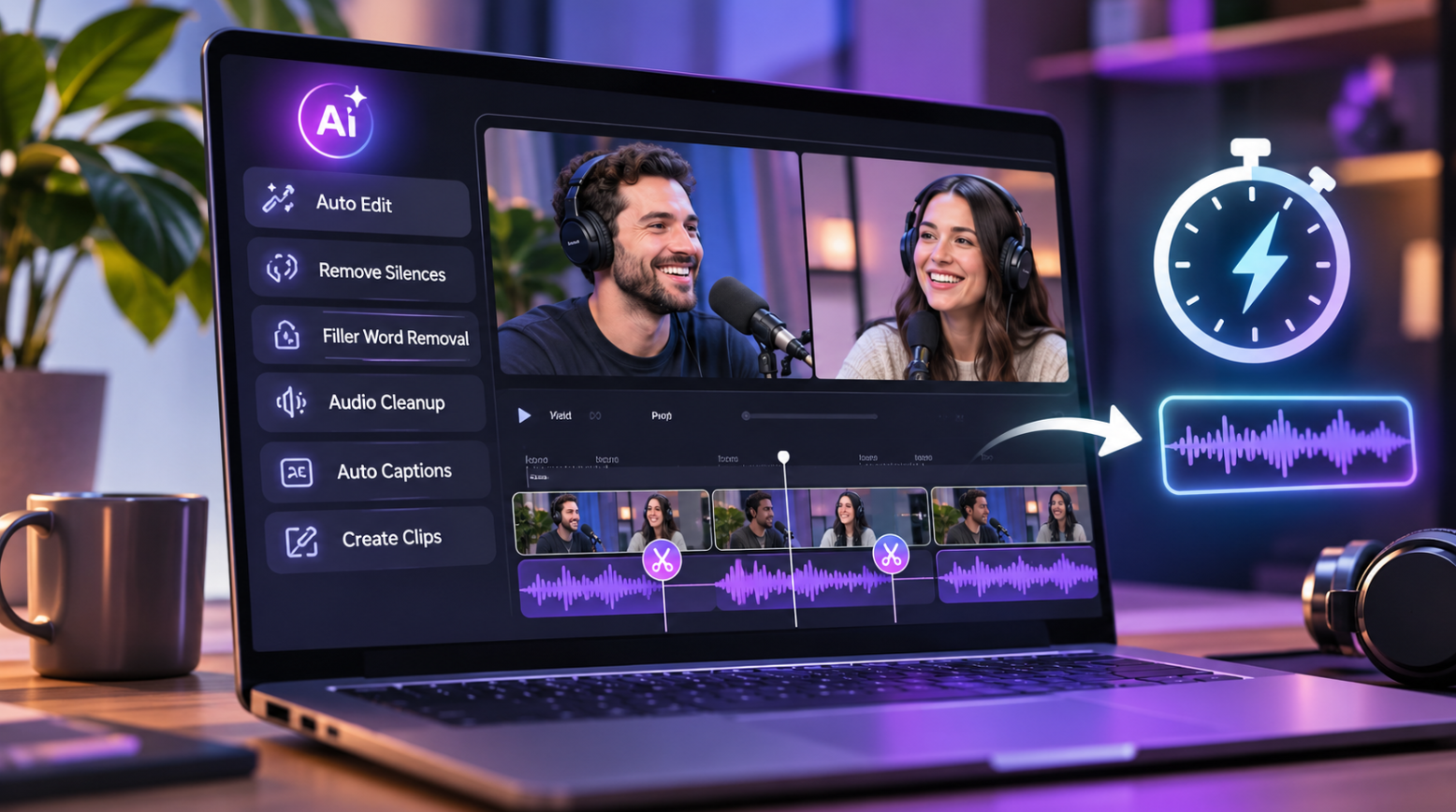
That combination matters most for recordings. Invideo’s podcast editor workflow starts with your recordings: upload each camera and microphone file, describe how the episode should run, and the agent syncs the files, cuts filler words and silences, and cleans up voices on a multitrack timeline. You get a base cut to refine instead of a blank timeline, and the work runs in the browser on a desktop, tablet or phone. Agent jobs keep running even if you close the tab.
For multicam episodes, the agent can switch between angles based on who is speaking, hold on a guest through an answer or bring in a listener’s reaction. You can move any cut point yourself or send a focused instruction, such as shortening a repeated answer while keeping the opening music unchanged. Finishing stays in the same place: match exposure and colour between cameras, add speaker names and captions, and shape each voice with EQ, compression, de-essing and noise cleanup. Audio-only shows can export WAV, AAC or Opus, and video projects can move on to Premiere Pro, Final Cut Pro or DaVinci Resolve.
Key features
Audio-anchored camera and microphone sync
Agent-built first cut with filler and silence removal
Speaker-based camera switching that stays editable
Multitrack audio with EQ, compression, de-essing, noise cleanup and volume automation
Captions, camera colour matching and export to WAV, AAC, Opus or video
Project handoff to Premiere Pro, Final Cut Pro or DaVinci Resolve
Pricing
Manual editing and exports are free. Editing through ChatGPT or Claude does not use invideo editing credits, though the assistant’s own plan and usage limits apply. The built-in agent and generated images, video or audio use invideo credits.
2. Descript: For editing the conversation through its transcript
Descript treats a recording like a document. Import your files, let Autosync align audio-enabled tracks in a sequence, then delete or move transcript passages to cut or rearrange the matching audio and video. Remove Retakes helps clear repeated attempts, and Underlord, Descript’s AI assistant, takes broader instructions about what to tighten or restructure. For anyone who thinks in sentences rather than waveforms, that is a fast way to shape an episode.
For video, Automatic Multicam can pick active speakers, add cutaways and build group layouts once you set the relationship between cameras and audio. Running it again overwrites existing scenes, so it is worth finishing that pass before you style individual scenes. Studio Sound improves voices, and manual audio effects, visual layers and captions cover the rest of the finish. The handoff needs planning: standard XML exports leave out animation and audio effects, so those treatments have to be rebuilt in the receiving editor.
Key features
Transcript-based cutting for audio and video
Autosync for multitrack recordings
Remove Retakes and Underlord AI assistant
Automatic Multicam with speaker layouts and cutaways
Studio Sound, captions and visual layers
Pricing
The Hobbyist plan costs US24perpersonmonthly,orUS16 a month billed annually, and includes 10 media hours, 400 AI credits and watermark-free 1080p exports. The Creator plan costs US35monthly,orUS24 a month billed annually, with 30 media hours, 800 AI credits, 4K and timeline export. Source uploads use the media allowance, and Underlord requests use AI credits.
3. Filmora: For desktop multicam editing with guided AI assistance
Filmora combines a conventional desktop timeline with native multicam, transcript editing and AI Mate, its conversational assistant. On Windows, multicam clips can sync using audio waveforms, first frames or markers, and a dedicated viewer lets you choose angles during playback and adjust the cuts afterward. AI Mate adds Audio Sync and executable actions such as sound and colour adjustments, so you can describe a change instead of hunting for the control.
For the conversation itself, AI Text-Based Editing turns transcript deletions into media cuts and can remove silent clips, while separate silence detection shortens gaps. From there you can continue with colour controls, EQ, denoise, titles, keyframes and editable dynamic captions without leaving the app. Smart Short Clips prepares editable promotional candidates from a longer episode.
Key features
Native multicam with audio, first-frame or marker sync (Windows)
AI Mate assistant with Audio Sync and editing actions
AI Text-Based Editing and silence detection
Colour, EQ, denoise, titles, keyframes and editable captions
Smart Short Clips for promotional versions
Pricing
Paid licences support ongoing watermark-free export, while trial exports carry a watermark. AI features have separate allowances: Filmora meters AI Text-Based Editing and speech-to-text with credits, and AI Mate has its own monthly conversation limit. The Advanced plan lists US$59.99 a year with 1,000 AI credits each month. The Perpetual plan includes 1,000 credits once, and they do not renew monthly.
4. Riverside: For transcript edits and reusable speaker layouts
Riverside is best known for recording, but its editor also accepts recordings made elsewhere. Multiple files can become a layered multitrack recording or consecutive segments. Selecting transcript text cuts the matching recording, with pause and filler removal for fast cleanup, while Co-Creator adds conversational editing for broader changes. That keeps the first pass quick for talk-heavy shows.
Smart Layouts build scenes around changing speaker views, and the editor supports movable, resizable speaker tiles, reusable layouts, layered media and per-section volume. Collapsed editing keeps tracks together, while expanded editing gives independent control but can put tracks out of sync when you change timing. If you upload separate camera and microphone files, tracks of different lengths need matching start times, so prepare that alignment first. Captions, branding and audio enhancement round out finishing inside the Riverside editor.
Key features
Multitrack import of recordings made outside Riverside
Transcript cuts with pause and filler removal
Co-Creator conversational editing
Smart Layouts and editable speaker tiles
Captions, branding, per-section volume and audio enhancement
Pricing
Paid plans remove the output watermark. The Pro plan lists US29monthlyorUS24 a month billed annually. Editable timeline export requires the Business plan, and it carries basic cuts, trims, chapters and comments rather than overlays or AI treatments.
5. Eddie AI: For interview-led assemblies and planned editor handoffs
Eddie AI is built around finding the strongest material in long recordings. Its searchable interview logs help you locate the relevant passages, and story prompts turn selected answers into an editable assembly. It can sync supplied camera angles or import prepared multicam clips, then cut between speakers from your instructions. That makes it a good fit for interview-style episodes where the story matters more than the running order.
Eddie also supports transcript changes, trims, captions, motion graphics, colour, clean speech and music with ducking, and it can be reached through external assistants over MCP. When the episode needs finishing elsewhere, the export format decides what stays editable. Native Premiere and Resolve projects keep multicam angles but leave out colour grades, while Resolve FCPXML retains more finishing work but drops the multicam angles. Choose the format based on which of those you would rather rebuild.
Key features
Searchable interview logs and story-prompted assemblies
Camera sync, multicam import and speaker-based cuts
Captions, graphics, colour, clean speech and music ducking
MCP access for external assistants
MP4 delivery and editable Premiere or Resolve exports
Pricing
Eddie uses pay-as-you-go credits. New accounts receive 500 credits, and a 1,000-credit pack costs US$10. Importing costs about 250 credits per source hour, and requested edits, rendered videos and timeline exports also use credits, so long source collections and repeated assemblies add to the total.
6. Adobe Podcast: For fast voice cleanup and quick browser edits
Adobe Podcast focuses on the sound of the episode. Enhance Speech removes noise and echo from voice recordings, which can rescue a phone call or a room with poor acoustics in a single pass. Studio lets you record, transcribe and edit in the browser, including transcription-based editing, and Mic Check analyses your microphone setup before you record. Adobe labels Studio as beta, so features and limits can change.
It is the most audio-first tool in this list, which keeps it simple. It suits shows that mainly need clean voices and a quick transcript edit, and it works well alongside a heavier editor for picture, multicam and promotional clips. The free plan sets clear limits: Enhance Speech takes audio only, one file at a time, with files up to 30 minutes and 500 MB, while Premium adds video support and bulk upload.
Key features
Enhance Speech for noise and echo removal
Studio for browser recording, transcription and transcript-based editing
Mic Check for pre-recording microphone analysis
Adjustable enhancement strength on the Premium plan
Speaker-separated original recordings on the Premium plan
Pricing
The free plan allows 1 hour of Enhance Speech a day and Studio downloads of projects up to 30 minutes, two per day, with Adobe-branded audiograms. The Premium plan raises Enhance Speech to 4 hours a day with files up to 2 hours and 1 GB, removes Studio download limits and includes a 30-day free trial. Premium pricing varies by region, so check the plans page in your Adobe account.
Frequently asked questions
How much time can an AI podcast editor save?
The savings depend on the recording and the tool, and no editor can promise a fixed number. The biggest gains come from automating the repetitive first pass: syncing files, trimming retakes, removing silences and cleaning voices. You still review the result, so plan for a listen-through before publishing.
Do I need a video recording to use these tools?
No. Adobe Podcast is audio-first, and Descript, Riverside and invideo Editor handle audio as well as video. Invideo Editor can export audio-only episodes as WAV, AAC or Opus. Features such as camera switching and speaker layouts only apply when you have video.
Should I let the tool remove every filler word and pause?
Usually not. A pause can give a joke room or let an answer land, and an automatic pass can clip a word at the edges. Remove the distractions, then listen across the joins, especially where two people overlap.
How do credits and allowances affect the real cost?
Credits, media hours and daily caps can matter more than the headline price. Descript meters uploads and AI requests separately, Filmora and Eddie AI charge credits for AI operations, and Adobe Podcast limits daily processing on its free plan. In invideo Editor, manual editing and exports are free and ordinary editing through ChatGPT or Claude does not use invideo editing credits, but the built-in agent and generated media do.
Can I hand the episode to my regular editor?
Often, yes, with differences in what carries over. Invideo Editor can send projects to Premiere Pro, Final Cut Pro or DaVinci Resolve. Descript offers timeline export on the Creator plan, Riverside reserves it for the Business plan, and Eddie AI exports Premiere and Resolve projects with the format limits described above. Test a short section in the receiving editor before committing a full episode.