Adding an AI Chatbot to a Website: A Practical Setup and QA Guide
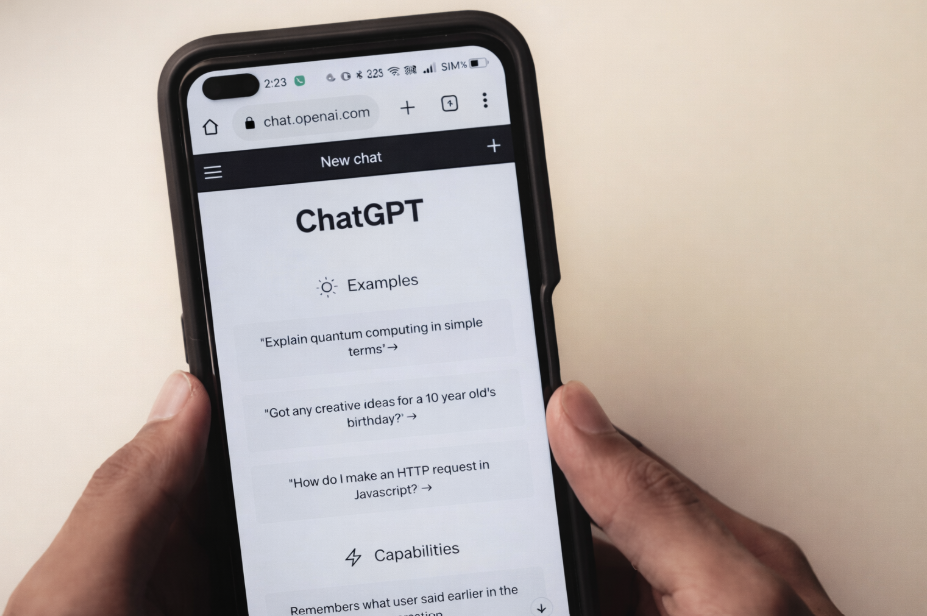
I needed a way to answer the same fifteen customer questions at 2 a.m. without hiring anyone. I pasted one script tag into my site footer, published, and the widget appeared site-wide in under five minutes.
No theme edits. No developer ticket. No weekend lost to documentation.
Most site owners assume a website AI chatbot requires engineering time, custom integrations, or weeks of setup. With today’s hosted chatbot vendors, it usually comes down to one embed snippet that works across Squarespace, Shopify, WordPress, and Webflow.
The timing matters. Gartner reported that 85% of customer-service leaders planned to explore or pilot customer-facing conversational generative AI in 2025. Zendesk’s 2024 CX Trends found that 83% of leaders already using generative AI report positive ROI.
The real work isn’t “adding AI.” It’s preparing clean source content, installing the widget without breaking performance, and setting up measurement so the bot improves every week.
Define a Website AI Chatbot
A website AI chatbot answers visitor questions by retrieving your content and generating responses tied to those sources.
In practice, it’s a floating bubble or embedded panel that pulls relevant pages or documents, then drafts a natural-language reply based on what it retrieved. Many tools can also escalate to a human when the bot can’t help.
This differs from live chat, which is human-first, and from rules-based bots that follow decision trees. A modern bot typically uses retrieval-augmented generation (RAG), meaning it searches your approved sources first, then generates an answer that stays grounded in that material.
The minimum viable product (MVP) is straightforward: answer FAQs, pricing questions, shipping policies, return rules, and “where do I find X?” navigation prompts in your brand voice.
Understand Why Adoption Is Accelerating
The tools are improving quickly, and customers now expect immediate, accurate answers outside business hours.
Gartner’s mid-2024 survey found that 85% of service leaders will explore or pilot customer-facing conversational AI in 2025. Zendesk also reported that 70% of CX leaders are reimagining customer journeys with generative AI.
Resolution rates have matured. Intercom’s Fin 2 AI agent reports an average 51% automated resolution rate out of the box, which can meaningfully reduce repetitive tickets for small teams.
For Shopify stores specifically, platforms like BotSpace resolve over 70% of repetitive customer queries - from order tracking to returns - without human involvement.
One constraint remains: performance, accessibility, and privacy can’t be “phase two.” A chatbot that slows pages, traps keyboard users, or drops cookies without consent creates friction and support debt.
Prep Your Content in 30 Minutes
Accuracy at launch depends more on content prep than on any model setting.
Run this checklist before you touch embed code.
Source of truth: Pull the top 30–50 customer questions from email, chat logs, and your FAQ. Also list your ten highest-traffic URLs so the bot can prioritize what visitors actually read.
Content format: Prefer public URLs plus one or two lightweight PDFs, such as a pricing guide or service menu. Exclude drafts, outdated promos, and pages that contradict current policy.
Guardrails: Define “don’t answer” topics, including personal data (PII), legal advice, medical advice, and account-specific requests. Write a fallback reply that offers a clear contact path.
Tone and prompt: Use one concrete system instruction, for example: “Be concise, cite the source page title, and offer one next-step link.” Avoid long prompt blocks that conflict with your policies.
Escalation path: Choose the handoff method, such as email form, help-desk ticket, or live agent during business hours. Decide what the bot should collect before escalation, and keep it minimal.
Branding assets: Gather hex colors, a logo file, and a short greeting that matches your voice. Keep the greeting practical, not cute.
With this done, configuring most hosted bots takes under fifteen minutes because you’re not fighting unclear source material.
Choose a Deployment Method
The best deployment option is the one that minimizes template changes while preserving control over where the widget loads.
Prefer an all‑in‑one hosted option that bundles content ingestion, RAG-based answers, analytics, and a drop-in widget, so you don’t have to stitch together separate tools or maintain custom code? If you want a single snippet you can paste today and still scale to a large site later, Denser’s guide shows the typical setup flow, what to prepare beforehand, and the performance checks to run when rolling it out across Squarespace, Shopify, WordPress, or Webflow in production safely, and you add chatbot to website with no coding.
Direct embed is the fastest route for hosted chatbot widgets, while a chat SDK is a better fit when teams need deeper control over real-time messaging inside their own product. It works across most platforms and doesn’t require extra tooling.
CMS-native embed uses built-in controls like Shopify 2.0 app embeds, the WPCode plugin on WordPress, or Webflow’s Custom Code panel. Nothing lives in theme files, so updates are less risky.
Google Tag Manager (GTM) centralizes control across domains and subdomains. GTM supports a Custom HTML tag, so you can deploy a chatbot without editing templates, but it adds governance requirements. Limit publish permissions and keep changes reviewed.
Install in 10 Minutes by Platform
Most site builders accept a single footer snippet or an app toggle, so you can publish quickly without touching theme code.
Below are step-by-step instructions for common platforms.
Squarespace 7.x
Use Code Injection to load one snippet on every page. Go to Settings, then Advanced, then Code Injection. Paste the chatbot script into the Footer field, which loads just before the closing body tag. Save and publish, then visit a few pages to confirm the bubble appears. Footer placement lowers render-blocking risk.
Shopify Online Store 2.0
Use app embeds so you never touch theme files. Install your chatbot app, then go to Online Store, Themes, and Customize. Click App Embeds in the left sidebar and toggle the chatbot on. Configure position and visibility, then save and preview. Exclude checkout unless you have a strong reason, since checkout performance and UX are sensitive.
WordPress
The WPCode plugin, with over two million active installs, provides a no-code path that survives theme updates. Install and activate it from Plugins, then open Code Snippets and select Header and Footer. Paste your chatbot script in the Footer box, save, and test the front end.
Webflow
For site-wide deployment, open Project Settings, then Custom Code, and paste the script into Footer Code. Save and publish to your selected domains. For per-page control, open the page settings in Designer and paste under Custom Code. Publish again, then confirm the widget appears on the intended pages.
Alternate Path: Google Tag Manager
Confirm GTM is installed with its head and body snippets. In GTM, create a new tag with tag type Custom HTML. Paste the chatbot script, set the trigger to All Pages, then preview and debug. Once confirmed, submit and publish. If consent is required, use a Consent Initialization trigger or a consent-based trigger so the chatbot loads only after approval.
Run a 20-Minute QA Check
A short QA pass catches the three common launch failures: slow pages, inaccessible UI, and broken handoffs.
Run these checks before you announce anything.

Performance: Open Chrome DevTools, go to Network, reload, and confirm the widget JS loads asynchronously. Note transfer size and whether it increases main-thread work.
Accessibility: Tab to the bubble, open and close the widget with the keyboard, and confirm a visible focus indicator. Make sure focused elements aren’t hidden behind sticky headers or the chat window.
Mobile: Test iOS and Android viewports. The bubble should respect safe areas and avoid overlapping cookie banners, chat promos, or checkout CTAs.
Copy and tone: Ask your top twenty FAQs. Confirm answers cite on-site sources and avoid overconfident wording. Verify the fallback triggers when the bot doesn’t have enough information.
Escalation: Trigger the handoff path and confirm notifications or tickets arrive where your team actually works.
Analytics: Confirm events like chat opened, message sent, and resolved appear in the vendor dashboard.
Handle Security, Privacy, and Consent
Assume every chat session can become personal-data processing, and design your setup to collect less by default.
Link to your privacy notice inside the widget, and avoid asking for sensitive details in free-text fields. If the widget stores non-essential cookies, obtain consent before setting them in the UK and EU under PECR. In California, provide notices at collection and honor opt-outs of selling or sharing personal information as required by the CCPA.
Don’t hard-code secrets in client-side code. If you need sensitive API calls, route them through your backend. Keep a retention schedule for chat logs, and make deletion possible when users request it.
Meet Essential Accessibility Requirements
If the widget isn’t keyboard-usable, it isn’t shippable, because chat is a primary navigation and support surface.
WCAG 2.2 introduced success criteria like Focus Not Obscured and Focus Appearance, both relevant to chat bubbles and drawers. Make the bubble and chat window fully operable via keyboard, and ensure every interactive element has a high-contrast visible focus state.
Add ARIA labels to controls when your vendor supports customization, and respect the user’s reduced-motion preference. A fast test: navigate the entire widget using only your keyboard. If you can open, type, send, review, and close without the mouse, you’re close.
Protect Site Performance
A chatbot should help visitors, not delay first paint or degrade checkout, so treat it like any other third-party script.
Third-party embeds can add significant weight. Web.dev cautions that popular embeds can include over 100 KB, and sometimes up to 2 MB, of JavaScript. Place your chatbot script in the footer and use async or defer when the provider supports it.
Exclude the widget from templates where it’s risky or unnecessary, such as checkout and high-intent landing pages, unless your data says it helps. Audit third-party scripts quarterly with DevTools and Lighthouse, then remove anything that doesn’t earn its keep.
Measure Outcomes and Improve Weekly
Chatbots get better when you review failures, fix sources, and retest, not when you endlessly tweak prompts.
Track a small set of metrics tied to outcomes. Automated Resolution Rate measures the share of conversations fully resolved by the bot. Deflection rate captures sessions that don’t need human follow-up. Add CSAT surveys after bot sessions, and tag conversion assists when a lead or order follows a chat.
Review chat logs weekly. Cluster “no answer” questions, identify the missing page or policy, and add one clean entry to your knowledge base. Re-run your top FAQs after each update to confirm the fix sticks.
Expand Beyond the First Release
After the bot reliably handles FAQs, you can add integrations and personalization without weakening guardrails.
Connect your CRM or email platform to log leads, but keep data capture explicit and minimal. Add booking or product lookups through your backend so sensitive calls aren’t exposed in the browser. If you support multiple markets, add multilingual greetings and page-specific suggested prompts on pricing, services, and returns pages.
Keep the bot grounded to current site content, and avoid letting it improvise on policy or account-specific issues. When a question requires verification, the best answer is a controlled handoff.
FAQ
These are the questions teams ask most often before shipping a chatbot embed.
Does adding a chatbot require coding?
No. Each platform in this guide offers a no-code option: paste a snippet into a footer field, or toggle an app embed. Expect about ten minutes per platform once content is ready.
Will it work on Squarespace, Shopify, WordPress, and Webflow?
Yes. Squarespace uses Code Injection, Shopify uses app embeds, WordPress commonly uses a header/footer snippet tool like WPCode, and Webflow uses its Custom Code panel. The steps above cover each path.
How do I reduce wrong answers?
Ground the bot on your approved URLs and PDFs, set explicit “don’t answer” topics, and require source citations in responses. Then review logs weekly and close the gaps with updated source content.
Will a chatbot slow my site?
Any embed adds JavaScript. Load the script in the footer, use async or defer where supported, audit weight and main-thread impact in DevTools, and exclude checkout or other sensitive templates when needed.
Do I need cookie consent for the chatbot?
If the widget sets non-essential cookies or trackers, you need consent in the UK and EU. In California, provide required notices at collection and honor opt-out requests. Confirm what your vendor stores, and document it.
How do I measure chatbot success?
Track Automated Resolution Rate, deflection, CSAT after bot sessions, and conversion assists. Use weekly reviews to find top failure modes, then improve sources and handoff flows.
Can I deploy the chatbot through Google Tag Manager?
Yes. Create a Custom HTML tag in GTM, paste the chatbot script, set an All Pages trigger, preview, and publish. If you need consent gating, configure consent triggers so the widget loads only when allowed.