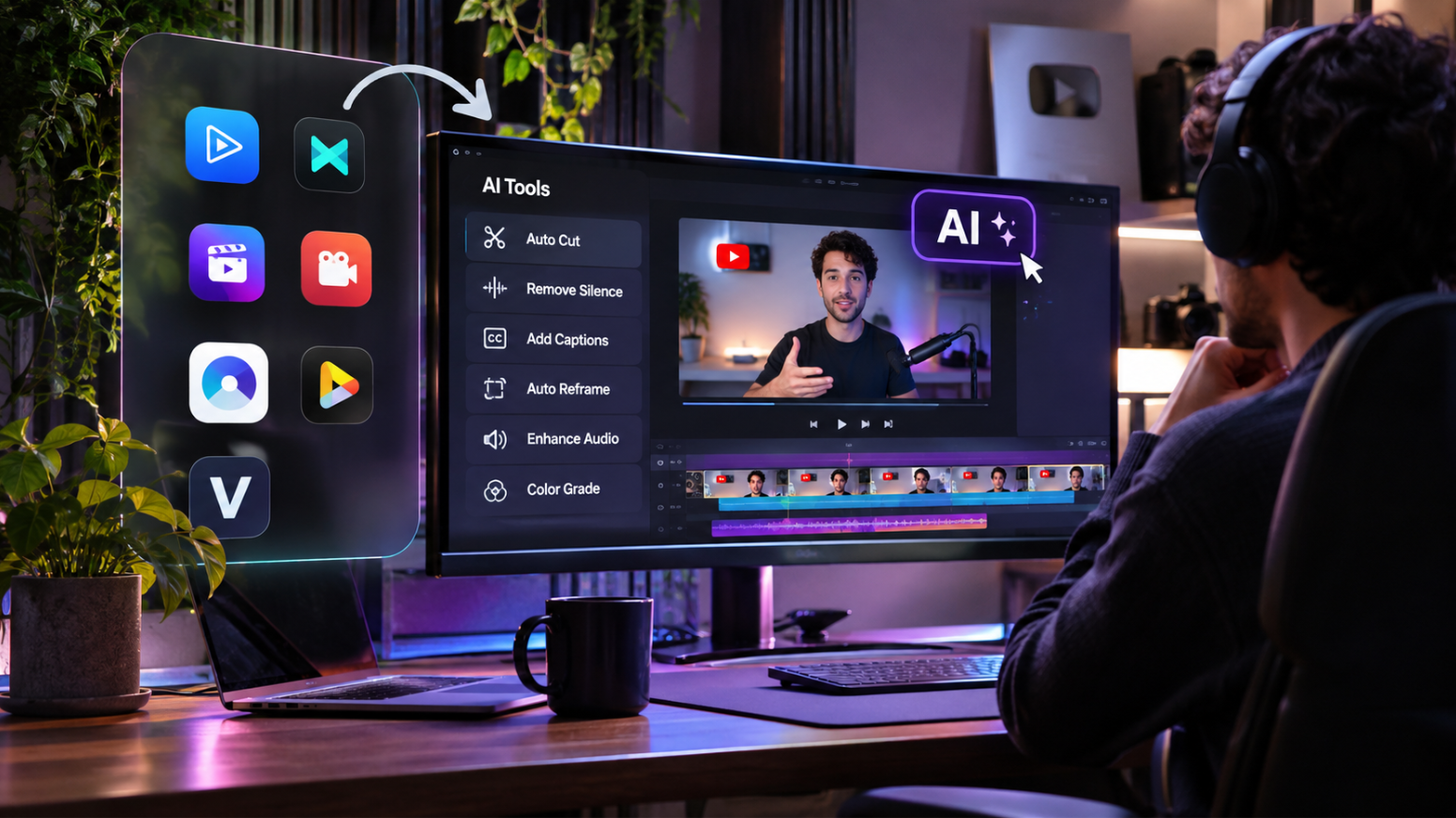
Editing is the stage where most YouTube uploads stall. The footage is shot, the idea is clear, and then hours disappear into trimming pauses, building the first assembly, adding captions, resizing for Shorts, and exporting. Rough cut editing alone can take longer than the recording session, and it is the kind of repetitive work that AI is now genuinely good at speeding up.
This guide compares seven AI video editors that can take over the slow parts of a YouTube workflow. Each one is covered with the same structure, so you can see what it automates, who it suits, and what to keep in mind before you commit.
Why Automate Your YouTube Editing Workflow
Automation does not replace your creative judgement. It removes the mechanical steps that sit between raw footage and a finished video. A few reasons it is worth setting up properly:
Consistency: A repeatable process means every upload gets the same captions, pacing and structure, even in a busy week.
Speed to publish: Cutting silences, filler words and false starts automatically gets you to a watchable first draft in minutes.
Less burnout: Handing off repetitive edits protects the time you need for scripting, filming and thumbnails.
Easier repurposing: The same long video can become Shorts, clips and captioned versions without starting again.
What to Look For in an AI YouTube Video Editor
Not every AI editor automates the same steps. Before choosing, check these points against the way you actually work:
First-cut automation: Can it find the good takes, remove dead air and assemble a draft you can refine?
Captions and transcripts: Accurate auto-captions save time and help viewers watching without sound.
Manual control: AI gets you most of the way, but you still need a real timeline for pacing, layers and fine adjustments.
Repurposing: Look for resizing and clip extraction if Shorts are part of your plan.
Audio cleanup: Noise reduction and filler word removal make a big difference to perceived quality.
Cost model: Check what is free, what needs a paid plan and which AI actions use credits or allowances.
Quick Comparison
| Tool | Best for | Main automation strength |
|---|---|---|
| Invideo Editor | End-to-end YouTube editing with an agent and a full timeline | Agent-assisted assembly, captions, resizing and manual refinement |
| Descript | Talk-heavy videos edited through the transcript | Text-based editing and filler word removal |
| CapCut | Fast social-first edits and captions | Auto captions, smart cutting and templates |
| Filmora | Desktop editing with approachable AI tools | Silence detection, captions and AI music |
| Kapwing | Browser-based editing and team collaboration | Smart cutting, subtitles and repurposing |
| Opus Clip | Turning long videos into Shorts | AI clip selection, captions and reframing |
| VEED | Quick browser edits with captions and audio cleanup | Auto subtitles, noise removal and translation |
The 7 Best AI YouTube Video Editors
1. Invideo Editor: For Agent-Assisted Editing With Full Manual Control
Invideo Editor is an AI-powered video editor that runs in the browser. It pairs a built-in editing agent with a professional manual timeline, so you can hand off the repetitive work and still refine every detail yourself. The agent and the timeline work on the same project, which means anything the agent changes can be adjusted by hand afterwards.
For channels that publish on a schedule, invideo Editor works as a youtube video editor that can analyse your footage, assemble a first cut and then let you take over the pacing, layers and finishing touches. Using it as a youtube video editor means the rough assembly, caption pass and resizing no longer have to be done clip by clip.
Key features
Built-in editing agent that can find relevant shots, remove pauses and false starts, and assemble a cut
Professional timeline with layers, keyframe animation, colour controls and separate audio tracks
Captions, resizing and shorter versions of a longer edit
Stock sourcing and generated supporting media for B-roll and gaps
Export of an editable timeline into Premiere Pro, Final Cut Pro or DaVinci Resolve
Option to connect an assistant such as Claude or ChatGPT to edit the project through MCP
Best for: YouTube channels that want an automated first cut without giving up manual control over the final video.
Good to know: Manual editing and exports are free under current guidance, while the built-in agent and generated media use invideo credits. Ordinary editing through a connected external assistant does not use invideo editing credits, though that assistant's own plan limits still apply. invideo Editor does not upload directly to YouTube, so you export the finished video and upload it yourself. Confirm current plan details on the invideo site before you start.
2. Descript: For Talk-Heavy Videos Edited Through the Transcript
Descript turns your video into a transcript and lets you edit the footage by editing the text. Delete a sentence in the document and the matching video and audio disappear from the timeline. That approach suits interviews, tutorials, commentary and any video where the spoken word drives the story.
Key features
Transcript-based editing, so cuts happen by deleting or rearranging text
Filler word and pause removal across a whole recording
Studio Sound for cleaning up room noise and echo
Underlord, Descript's AI assistant, for suggested edits and automated tasks
Automatic captions and transcripts
Screen and camera recording inside the app
Best for: Talking-head channels, tutorials and podcasts that want to edit video as quickly as they edit a document.
Good to know: Descript meters its usage in two ways: media minutes for the footage you process and a separate pool of AI credits for AI features. The free plan has a small monthly media allowance and a limited number of AI credits, so regular uploaders usually need a paid plan. Check the current pricing page for exact allowances.
3. CapCut: For Fast, Social-First Edits and Captions
CapCut is a widely used editor available on mobile, desktop and the web. It is built around quick, trend-aware editing, with templates, effects and captions that make it easy to produce punchy videos and Shorts without a steep learning curve.
Key features
Auto captions with styled text options
Smart cutting tools that trim silence and dead air
Long video to Shorts conversion
Background removal and other AI-assisted visual tools
Large library of templates, effects and transitions
Multi-track timeline with keyframes on desktop
Best for: YouTube channels that lean on Shorts and short-form repurposing and want an approachable, template-driven workflow.
Good to know: The free version covers a lot, but several AI features and premium assets sit behind a Pro plan or usage limits. Availability and plan details can vary by platform and region, so check what is included before building a workflow around a specific feature.
4. Filmora: For Desktop Editing With Approachable AI Tools
Filmora, from Wondershare, is a desktop editor aimed at people who want more power than a basic app without the complexity of a professional suite. It combines a familiar timeline with a set of AI tools that handle common clean-up tasks.
Key features
Silence detection to remove dead air from recordings
Speech-to-text for captions and subtitles
AI music and audio tools for backing tracks and cleanup
Auto reframe for creating vertical or square versions
Titles, effects and templates built into the editor
Keyframing and standard multi-track editing
Best for: YouTubers who prefer a desktop app and want a gentle learning curve with useful automation built in.
Good to know: A paid licence covers exports without a watermark, while some AI services have their own separate allowances. Review the current licence options and AI usage terms before choosing a plan.
5. Kapwing: For Browser-Based Editing and Team Collaboration
Kapwing is a browser-based editor with a strong focus on collaboration. Projects live online, so teammates can work on the same video, share assets and leave feedback without passing files back and forth.
Key features
Smart cutting to remove silences and tighten recordings
Automatic subtitles with customisable styling
Tools for turning a long video into shorter clips
Resizing for different aspect ratios
Shared workspaces and brand assets for teams
Text-based editing of spoken content
Best for: Small teams and agencies that produce videos together and want everything in one shared, browser-based place.
Good to know: The free plan includes watermarks and limits on export length and quality, so channels publishing regularly will likely need a paid plan. Some AI actions may also draw on an allowance, so check the current plan comparison.
6. Opus Clip: For Turning Long Videos Into Shorts
Opus Clip is a specialist. Rather than acting as a full timeline editor, it analyses a long video and picks out the moments most likely to work as short clips, then formats them for vertical viewing.
Key features
AI selection of standout moments from long recordings
Automatic reframing to vertical format
Animated captions on each clip
Scoring of clips to help you choose which to post
Quick editing of clip start points, text and captions
Scheduling and publishing options on supported plans
Best for: Channels that already have a long-form library and want a steady stream of Shorts without cutting each one by hand.
Good to know: Opus Clip handles clip extraction and formatting, not full long-form editing, so you will still need another editor for the main video. Plans are based on processing minutes, so the length of your source videos affects how far an allowance goes.
7. VEED: For Quick Browser Edits With Captions and Audio Cleanup
VEED is a browser-based editor that makes it easy to polish a recording quickly. It is a practical choice for talking-head videos, screen recordings and anything that needs clean sound and accurate subtitles.
Key features
Automatic subtitles with editable text and styling
Noise removal and audio cleanup
Filler word and silence removal
Translation and dubbing tools for reaching other audiences
Built-in screen and webcam recording
Simple timeline with resizing for different platforms
Best for: Quick-turnaround YouTube videos where clean audio, readable captions and a fast export matter most.
Good to know: The free plan adds a watermark and limits export quality, and some AI features depend on the plan you choose. Look at the current pricing page to confirm what each tier unlocks.
How to Choose the Right Editor for Your Channel
Start with the step that costs you the most time. If it is assembling the first cut and refining it on a real timeline, invideo Editor covers both. If you edit by reading and deleting text, Descript fits. If Shorts are your priority, CapCut and Opus Clip are built around them. If you prefer the desktop, Filmora is a comfortable fit, and if you collaborate or work in the browser, Kapwing and VEED are worth trying. Most of these offer a free way to test your own footage, which is the best way to see how each tool handles your style of video.
FAQs
1. What is the best AI YouTube video editor?
The best choice depends on your workflow. Invideo Editor suits channels that want agent-assisted assembly plus a full manual timeline, Descript suits transcript-driven editing, and Opus Clip suits turning long videos into Shorts.
2. Can AI really do a rough cut for me?
Yes, to a useful degree. AI can remove pauses, false starts and dead air and assemble footage into a first draft. You should still review the result and adjust pacing, because editorial judgment remains yours.
3. Are there free AI video editors for YouTube?
Several offer a free way to start. Manual editing in invideo Editor is free, and Descript, CapCut, Kapwing and VEED each have a free plan with limits such as watermarks, allowances or reduced export options. Check each tool's current terms.
4. Do I need a separate tool for YouTube Shorts?
Not always. Editors like invideo Editor, CapCut and Kapwing can resize and cut shorter versions, while Opus Clip is a dedicated option if Shorts are your main focus.
5. Can I upload directly to YouTube from these editors?
That varies by tool. With invideo Editor, you export the finished video and upload it to YouTube yourself, then add any chapter timestamps to the description.
6. Will AI captions be accurate enough to publish?
They are a strong starting point, especially with clear audio, but proofread names, product terms and accents before publishing.
7. Can I keep working in Premiere Pro or DaVinci Resolve?
Yes. invideo Editor can export an editable timeline and media into Premiere Pro, Final Cut Pro or DaVinci Resolve, so you can hand a project to a more advanced editor when needed. Check that specific effects and fonts transfer the way you expect.