How to Create Forms in Claude in 2026

Forms are an important part of digital workflows in 2026. Businesses use them for lead collection, customer feedback, onboarding, and internal processes, while creators and teams use them to collect structured information. With Jotform connected to Claude, users can utilize the Claude form builder to create forms using prompts, edit fields conversationally, and manage submissions directly in chat.
Traditional form creation often requires manual setup. Users usually need to add fields one by one, adjust questions, review the form structure, and manage responses separately. This can slow down teams that need to collect information quickly.
Claude changes this process by making form creation conversational. Instead of building everything manually, users can describe the form they need in natural language, then refine it through chat.
The practical method covered in this guide is connecting Jotform with Claude. With this setup, users can move from form creation to field editing and submission management inside the same Claude conversation.
Why Create Forms Inside Claude?
Creating forms inside Claude simplifies the traditional form-building process by turning it into a conversation. Instead of manually configuring fields and navigating multiple menus, users can describe the form they need in natural language and generate it through Jotform directly inside chat.
This approach makes it easier to create, update, and manage forms without leaving the Claude conversation.
How to Create Forms Inside Claude with Jotform (Step-by-Step)
Creating forms with Claude using Jotform follows a clear, structured process. Each step builds on conversational interaction rather than manual setup.
Step 1: Connect Jotform to Claude
Before creating forms inside Claude, users need to connect their Jotform account through Claude’s integration settings.
To connect Jotform:
Open Claude
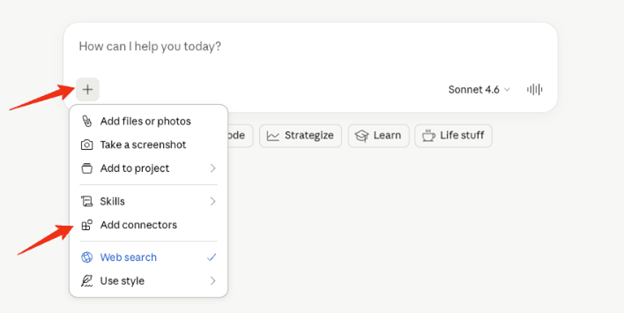
Click the “Plus” icon and select “Add Connectors”
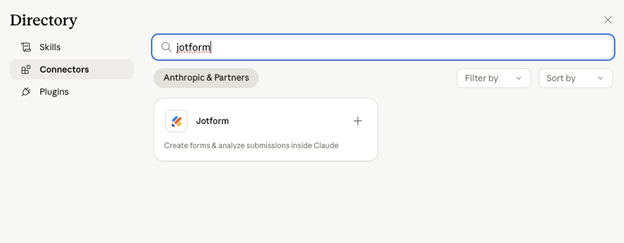
Search for Jotform
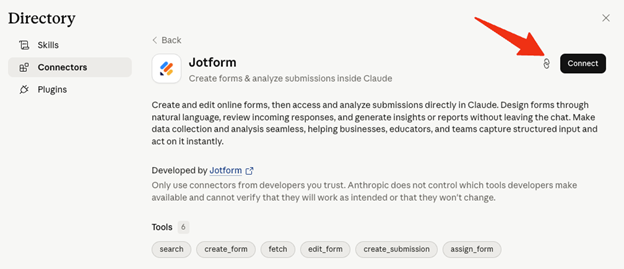
Click the connect icon on the Jotform connector
Log in to your Jotform account and click “Allow”
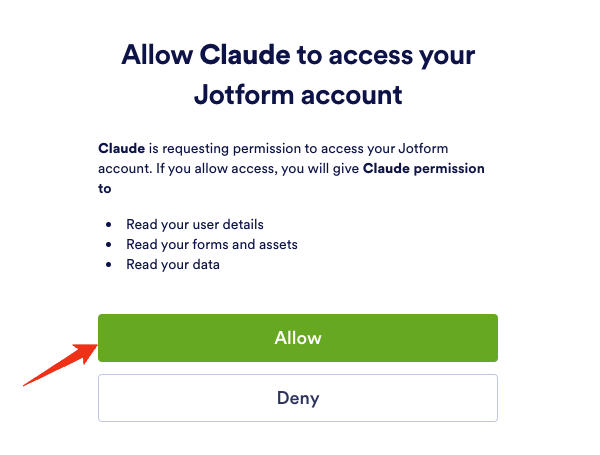
Once connected, Claude can access existing forms and create new forms in the connected Jotform account.
Step 2: Describe the Form Using a Prompt
After connecting their account, users can create a form by describing it in natural language inside Claude.
Example prompts:
“Create a contact form with name, email, phone number, and message fields”
“Build a customer feedback form with a rating from 1 to 5 and optional comments”
“Create a job application form with resume upload and experience section”
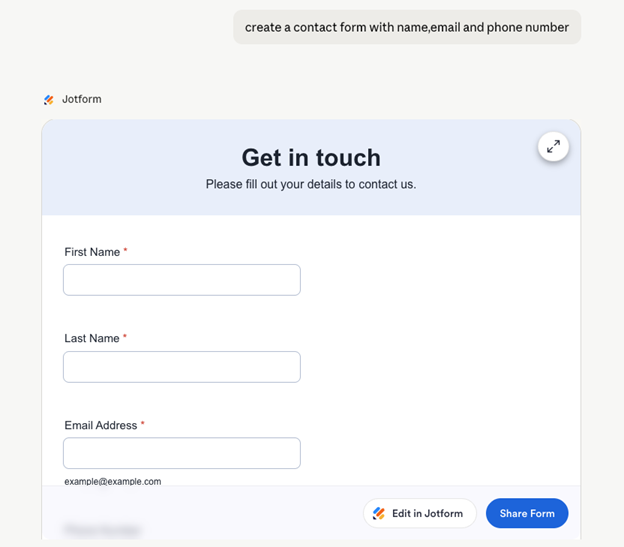
Claude processes the request and generates a structured form using Jotform.
More detailed prompts can help create more accurate forms. Users can specify the fields they need and which fields should be required, and describe the purpose of the form directly in the prompt.
Step 3: Edit and Refine Fields Conversationally
After the initial form is created, users can continue updating the form through follow-up prompts.
Examples:
“Make the email field required”
“Add a dropdown for service type”
“Include a checkbox for newsletter subscription”
“Remove the phone number field”
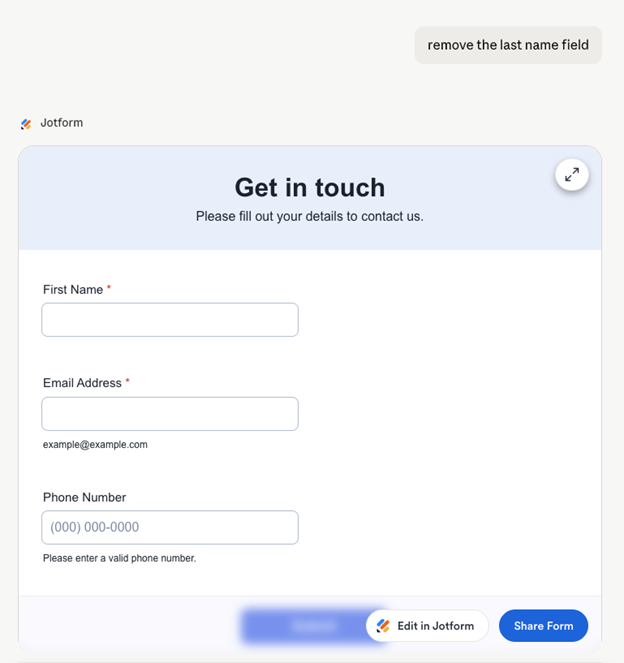
Claude updates the form based on these instructions and displays the changes directly in the conversation.
Users can continue refining the form through chat or open the form in Jotform Form Builder for additional customization.
Step 4: Review and Finalize the Form
After Claude generates the form, it appears directly in the conversation as a form preview.
Users can continue updating the form by entering additional prompts.
For example:
“Change the background color to green”
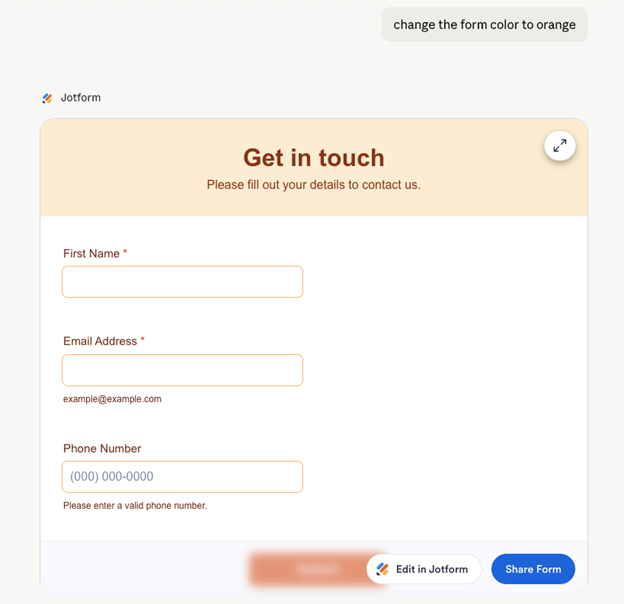
Users can also click “Edit in Jotform” to open the form in Jotform Form Builder for additional customization.
Once the form is finalized, it remains available in the connected Jotform account.
Step 5: Manage Form Submissions Directly Inside Claude
After publishing the form, submissions can be managed within Claude.
Examples:
“Show recent submissions”
“Summarize feedback responses”
“List all entries from the last 7 days”
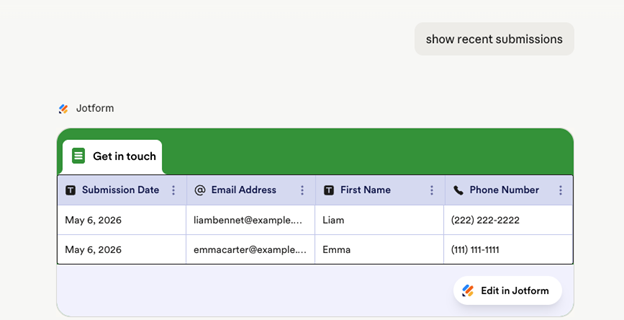
Claude retrieves submission data from Jotform and displays the results directly in the conversation.
Users can review responses and continue working with submission data without leaving the chat.
What are the Benefits of Creating Forms Inside Claude?
Using Jotform with Claude simplifies form creation by turning the process into a conversation instead of a manual setup workflow.
Faster Than Traditional Form Creation
Forms can be generated using prompts instead of adding and configuring fields one by one. This makes it easier to create forms quickly for surveys, registrations, feedback, and internal workflows.
Less Manual Configuration
Instead of navigating multiple menus and settings, users can describe the form they need directly in chat. Additional changes can also be made through follow-up prompts.
Conversational Editing
Forms can be refined by entering new instructions in Claude. Users can add fields, remove sections, or adjust the form structure without restarting the setup process.
Manage Forms and Submissions in One Place
Form creation, field updates, and submission review can all happen inside Claude through the Jotform connector. It keeps the workflow in the same conversation instead of moving between multiple tools.
What are Common Use Cases of Building Forms in Claude?
Conversational form creation can support many different workflows, from lead collection to internal team processes.
Lead Generation
Businesses can create forms for website inquiries, sales leads, and service requests using simple prompts.
Example prompt:
“Create a lead form for a marketing agency with name, email, company, and budget range”
Surveys and Feedback
Forms can also be used to collect structured feedback from customers, employees, or event attendees.
Common examples include:
Customer satisfaction surveys
Product feedback forms
User experience ratings
Event Registrations
Event organizers can generate registration forms directly through chat without manually building the form structure.
Example prompt:
“Create an event registration form with attendee details and ticket selection”
Internal Workflows
Teams can use conversational forms for internal requests, task submissions, and incident reporting. Instead of manually configuring forms from scratch, users can create and update forms through prompts inside Claude.
Tips for Better Results
The quality of the generated form depends on how clearly the prompt is written.
Write Clear and Specific Prompts
Specific prompts can help create more accurate forms.
Instead of:
“Create a form”
Use:
“Create a customer feedback form with rating, comments, and email fields”
Keep Forms Simple
Start with the essential fields first. Additional fields and sections can be added later through follow-up prompts.
Refine Forms Through Chat
After the form is generated, users can continue updating it through additional prompts.
Examples:
“Add a phone number field”
“Make the email field required”
“Remove the comments section”
Focus on Clear Form Structure
Forms are easier to complete when labels, questions, and fields are simple and easy to understand. Keeping the form structure clear can also make updates and revisions easier later in the conversation.
FAQ
How do you create a form inside Claude in 2026?
To create a form inside Claude, users need to connect to Jotform through “Connect your Tools” or the “Add Connectors” menu. After connecting the account, users can describe the form they want using a natural language prompt, and Claude generates the form using Jotform.
Can Claude generate forms automatically?
Claude can generate forms from natural language prompts with Jotform. Users can describe the purpose of the form and the fields they need without manually building the form structure.
How do you manage form submissions in Claude?
Claude can access and display submissions from connected Jotform forms directly inside the conversation. Users can review recent submissions and summarize responses through chat.
Do you need coding skills to create forms with Claude in 2026?
No. Forms can be created and updated through natural language prompts without coding or manual configuration with the Jotform Claude connector.
Final Thoughts
Creating forms inside Claude changes the traditional form-building process by turning it into a conversation in 2026. Instead of manually configuring fields and switching between dashboards, users can create, refine, and manage forms directly through chat.
For businesses, creators, and teams handling surveys, lead collection, registrations, or internal workflows, this approach can simplify how forms are created and maintained in 2026.
To get started, try the Jotform Claude connector and create forms directly inside Claude using natural language prompts.